Ok..I heard it’s been asked before…I missed it. Would someone kindly guide me to the answer of how to get Heart of the Instrument to play in my MAC and or my standard DVD player? It keeps showing up as PAL.
thanks
Ok..I heard it’s been asked before…I missed it. Would someone kindly guide me to the answer of how to get Heart of the Instrument to play in my MAC and or my standard DVD player? It keeps showing up as PAL.
thanks
Good question. I’ve been tryin’ to get my reeds to play in my computer, tool. USB ports don’t seem to work very well. The mic jack doesn’t work very well as a reed seat either. I nearly ruined my DVD drive trying to stick the reed in there. 
whomp whomp whomp… WWWWWWaaaaaaaahhhhhhhh
kpo
figured it out all..thanx
mine will not work on my brand new sony vaio laptop,but does work in the dvd player 
How old’s your Mac? If you’re using a recent version of OSX (e.g, Panther or Tiger), it should have no trouble playing the DVD; the older operating systems might choke on it though.
Is your copy of the DVD encoded for Region 1? If not, you might have somehow gotten one encoded for Region 2 (europe, japan, south africa). You can temporarily change the region encoding on your Mac in OSX, but only five times and then it’s locked in the last region you changed it to, so be careful.
Mine doesn’t work in my DVD player either. I was just reminded of this last night. It does work in my PC though.
My wife was on the computer and I wanted to get some more advice from the Benedict or Geoff sections, so I popped it into my DVD. And I could not get any picture from it. It had been a while since I have played it and I rarely have access to the TV. My wife is constantly glued to it.
That’s the PAL issue. There’s been a fair amount of discussion about that here and elsewhere…from what I’ve read most computers with a DVD drive and up to date software should be able to display PAL DVDs but some North American standalone DVD players won’t handle it.
I have converted a PAL DVD to NTSC regionless, so I could look at it
on my DVD player (it was Series 1 of Dead Ringers… good stuff)
If there’s interest, I could write up a tutorial for doing this (I’m not going
to bother if no one would read it, though). A person must be pretty
computer savvy, though, since you may have to change or spoof the
region code on your computer’s DVD-ROM drive.
The NPU video has no region code; the problem seems to be that the onscreen resolution/frame rate is incompatible with some more primitive (or brain dead?) DVD players.
As I’ve said before, NTSC and PAL are misnomers for DVDs, but some people abuse those terms to refer to the video resolution/frame rate of the video content ( as opposed to the encoding format, which is the same on all DVDs). It’s ironic that some PC dvd players refuse to play PAL, since the computer software has to convert the DVD data into something it can play on the computer screen in the first place…
Bill
OK, so someone PM’d me to say they’d like to know how to convert,
so I guess I’ll post it here. NOTE: This information is provided only
so you can make an NTSC backup of your PAL disk. Don’t steal.
You will need the following software tools:
dvdshrink 3.2
IFOEdit
You will, of course, need a DVD burner and the burning
software that came with it. I believe dvdshrink also requires
Nero to burn the CD. If you don’t have Nero, you have to
have dvdshrink save an ISO image, and use whatever burning
software you have.
(Some of the following screencaps are taken from this guide)
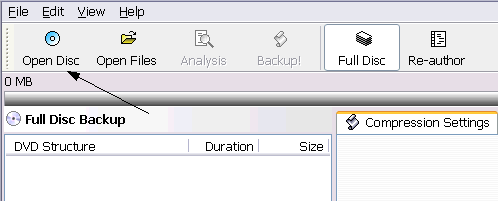
First, open the DVD with dvdshrink:
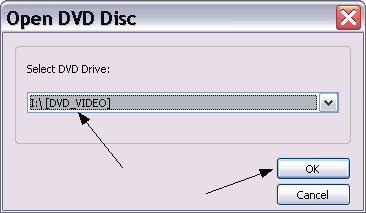
Select the DVD drive to open:
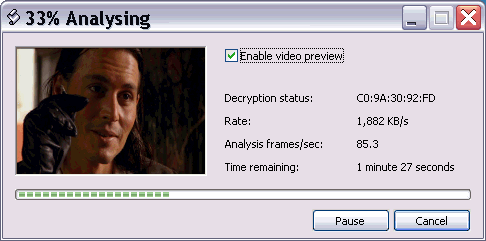
dvdshrink will open a window to analyze the DVD. This takes a
few minutes. The window will look something like this:
When the analysis window closes, click on the Backup button:

You should then get a window titled “Backup DVD” with 5 tabs at the top: “Target”, “DVD Region”, “Quality Settings”,
“Options”, and “Burn Settings”. First, click on the “Target” tab.
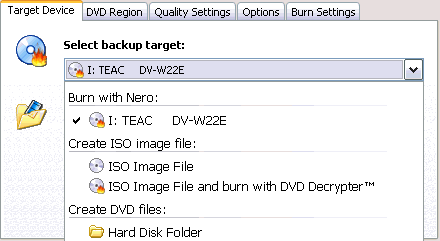
In the “Select Backup Target” dropdown menu, select “Hard
Disk Folder”. This will save the DVD to a folder instead of
backing it up directly to another DVD. In the “Select Target
Folder for DVD output files”, you must browse for a folder in
which to store your files. I tend to use something like
C:\DVDTEMP
Now, click on the “DVD Region” tab, and make sure “Region
Free” is checked. Now, click the “OK” button, and dvdshrink will
start to copy the DVD to your hard drive. You’ll probably get a
window that looks like this:
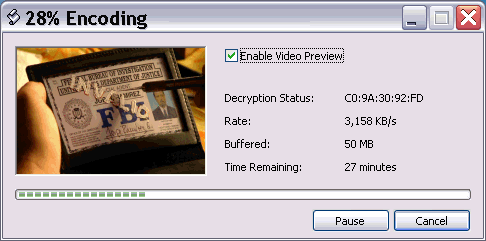
Don’t be surprised if the process takes a couple of hours.
When the encoding is done, look in the folder where you told
dvdshrink to put the files. There should be a folder inside that
one called VIDEO_TS, which will contain several files with the
.IFO extension. You must open each of these with the IFOEdit
program, and change them from PAL to NTSC.
See this tutorial for details about changing the IFO files.
After you have changed ALL of the IFO files to NTSC, you can
use dvdshrink to reencode the whole disk as NTSC, and burn it.
First, close dvdshrink and remove the DVD from the drive, so
you don’t accidentally open the PAL version of the disk. Then,
reopen dvdshrink, and click on the “Open Files” button.
Select the directory where the DVD was stored, and click OK.
dvdshrink will go through the Analysis stage again. Now, click
the Backup button, and under “Select Backup Target” on the
Target tab, instead of selecting “Hard Disk Folder”, this time
select either the “Burn with Nero” option (if you have Nero),
or the “Create ISO image file” option (if you don’t have Nero).
If you select the ISO file, a file will be saved with the extension
.ISO You can open this ISO file in your DVD burning software,
and burn it to a DVD disk.
I’d advise burning first to a DVD+RW (rewriteable) disk, in case
something goes wrong. This way, you can erase the disk and
try again if necessary. When you get it right, burn a Read only
(DVD-ROM) copy, so old DVD players can play it.
(No warantee is implied. Your mileage my vary. Not valid in
whatever state you live in.)